
Connect Claude to Google Analytics (GA4)
Which GA4 role your Google account needs, which permissions the portal requests, how to assign the right property, and what to do when it's missing. With five first GA4 prompts and real answers.

You connect your GA4 property to Claude and then ask about visitors, sources, pages, and conversions in plain language. No export, no clicking through GA4 reports.
The general part, meaning portal account, workspace, and the connector in Claude, is covered in Connect Your Marketing Accounts to Claude. This tutorial picks up there and covers only what's different for Google Analytics: the right GA4 role, the Google permissions, choosing the property, and the cases where your property simply doesn't show up. Then you ask your first five GA4 questions. We show every answer on our own property for marketing-mcp.honeyfield.at, queried on October 23, 2026.
What you need
- The Marketing MCP as a connector in Claude. Not set up yet? Start with Connect Your Marketing Accounts to Claude. For ChatGPT, Connect Your Marketing Accounts to ChatGPT shows the same setup.
- A Google account with access to the GA4 property. Step 1 covers which role it needs.
- A GA4 property. An old Universal Analytics property (ID "UA-…") won't work. More under "Property not in the dropdown".
Step 1: Check your Google account's GA4 role
In GA4, Claude sees exactly what the connected Google account sees. You assign the role in GA4 under Admin → Property access management. Which one you need depends on what Claude should do:
What Claude should do                         GA4 role    Workspace permission
Read reports, sources, pages, key events      Viewer      read
Create key events, audiences, dimensions Editor writeTwo switches, two places. The GA4 role sets what Google allows. The workspace permission in the portal sets what the Marketing MCP allows. For changes you need both. To start, "Viewer" and read are enough: with them, Claude answers every question in step 4.
✓ Checkpoint: The Google account you connect in the portal is listed in property access management with at least "Viewer".
Doesn't work? Without the "Administrator" role, GA4 doesn't show you access management, or it only shows your own account. You then can't see the other users' roles. Then ask someone with the "Administrator" role to add your Google account.
Step 2: Grant the Google permissions for Analytics
In the portal you connect Google once for all five Google sources. For Google Analytics, the portal requests two permissions from Google: view Analytics data (analytics.readonly) and edit Analytics (analytics.edit). Claude uses the first for every report. The second only when you approve a change, such as a new key event.
If Google's consent dialog shows you individual checkboxes, keep the ones for Google Analytics ticked. If one is missing, GA4 queries fail later even though the connection shows as "Active". You can see which permissions are granted in the portal under Settings → Google connection, next to "permissions".
First, Google asks which Google account you want to connect. Pick the account from step 1.
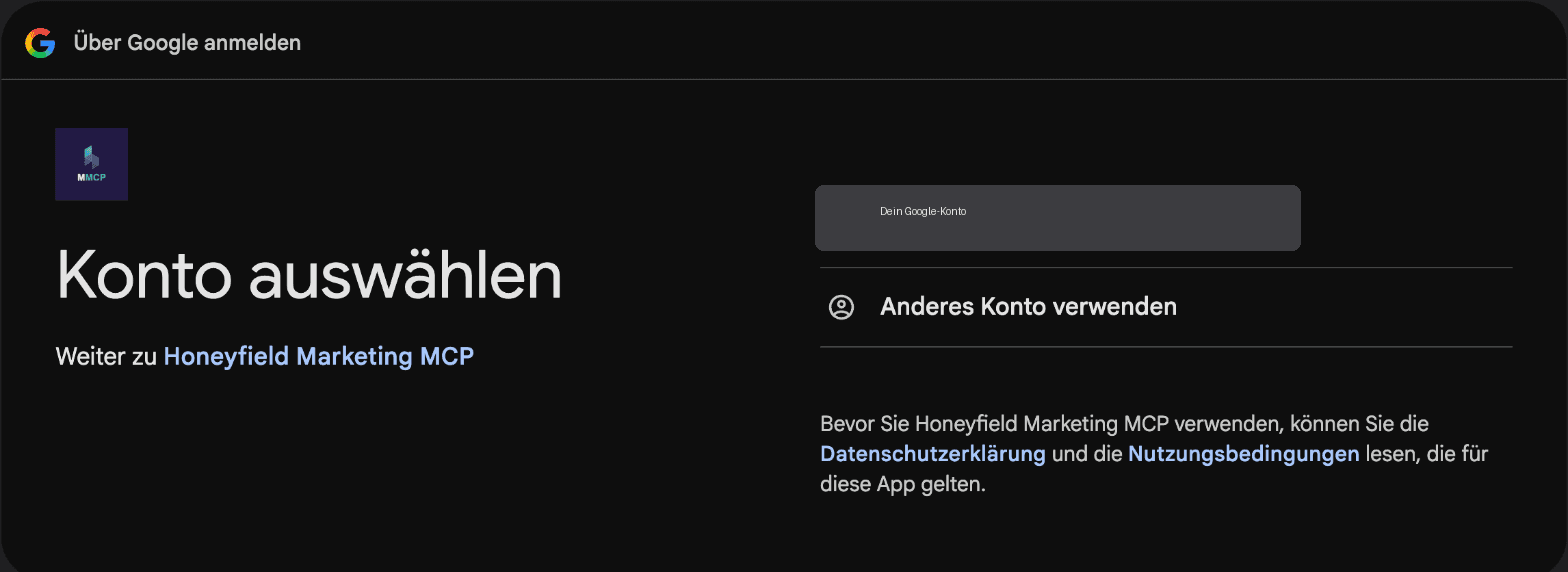
✓ Checkpoint: Under Settings → Google connection, your Google account shows "Active", and both Analytics permissions are listed.
Doesn't work? If you connected Google earlier, for Google Ads for example, you don't need a new connection: that grant already covers GA4. If the Analytics permissions are missing, click "Reconnect" on the connection and tick the boxes.
Step 3: Choose the property in your workspace
Open your workspace in the portal, expand the Google data sources under "Data sources", and pick the right one under "GA4 Property". Every entry shows name and property ID. Save.
A workspace has exactly one GA4 property. Every GA4 question in Claude runs against that one. If you manage two properties for one client, say website and shop, create two workspaces.
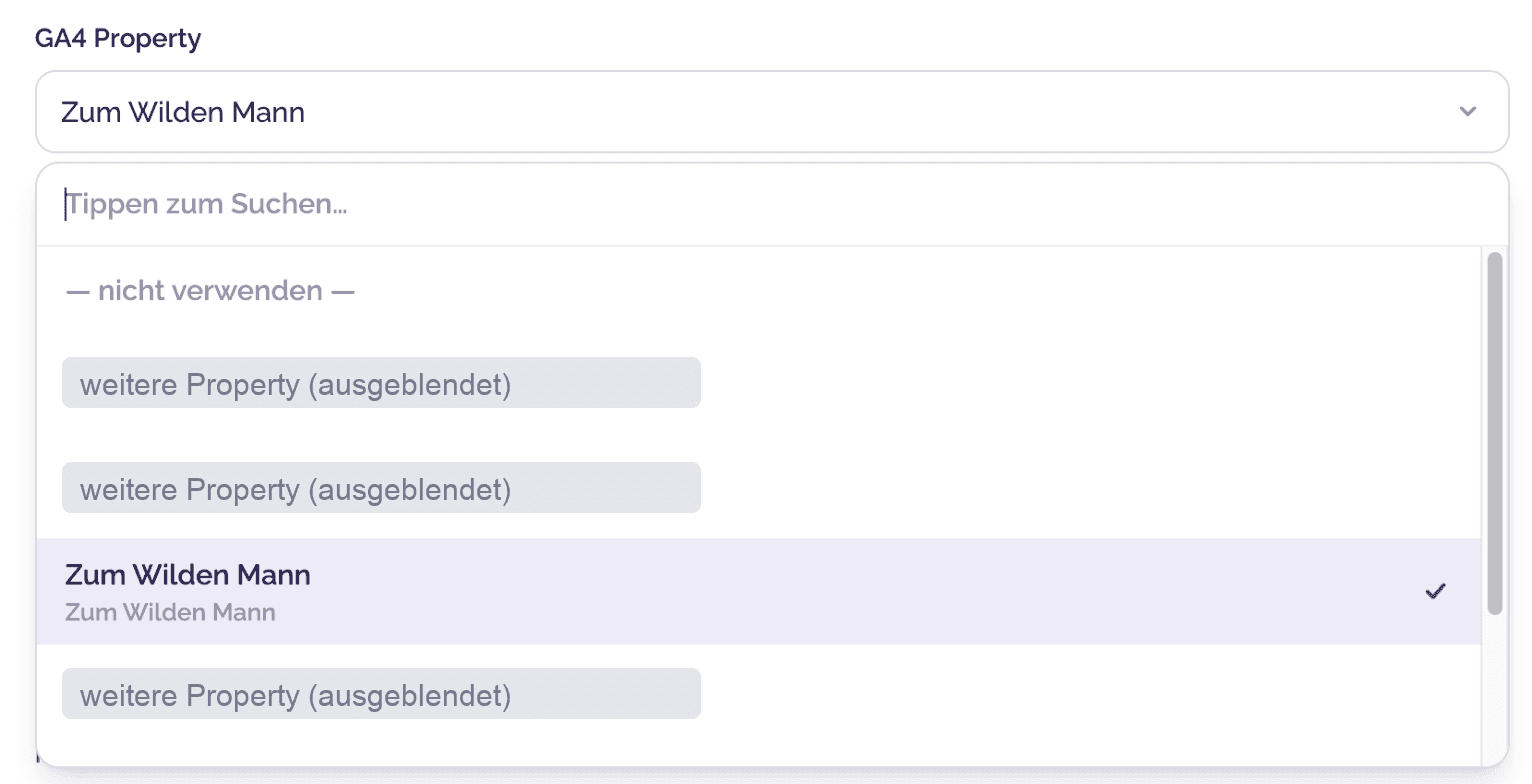
✓ Checkpoint: "GA4 Property" shows your property with the number you find in GA4 under Admin → Property settings.
Property not in the dropdown?
This is the most common stumbling block. Before you search, ask Claude what the connection can see at all:
Which GA4 properties can my Google connection see?What you get back:
Account Honeyfield (IDs hidden here)
  Honeyfield Marketing MCP
  Honeyfield Firmenseite (www)
  Honeyfield Portal (app.ads)
  ... 6 more
2 more accounts with 1 property each (client accounts, hidden here)For us, that's 11 properties in 3 accounts. If yours is missing from this list, it's one of these four:
- Wrong Google account. What counts here is only the Google account from step 2, not the email you use to sign in to the portal. If you granted access to a different account in GA4, add this one or connect the right one.
- Universal Analytics instead of GA4. The list only shows GA4 properties. An ID in the format "UA-12345-1" belongs to Universal Analytics, which has been shut down. You need the GA4 property; its ID is a plain number.
- Measurement ID instead of property ID. An ID like "G-XXXXXXXXXX" is the measurement ID of a web data stream, not the property. If you enter IDs manually ("Enter IDs manually instead"), the "GA4 property ID" field takes the number, such as 123456789.
- A very large number of Analytics accounts. The dropdown loads at most 200 Analytics accounts. If your Google account sees more, use manual entry.
Step 4: Your first five GA4 prompts
Open a new chat, enable the connector, and name the workspace if you have several. Then start asking.
1. The totals. Say that you want the sum, not rows:
How many sessions, active users, page views, and key events
did [workspace] have from 2026-09-22 to 2026-10-21? Just the total.What you get back:
Sessions … · active users … · page views … · key events …In this tutorial we hide our own numbers. Your agent shows you the real values from your property.
✓ Checkpoint: If you see numbers for your property, the connection works. From here on, every question is just a prompt.
2. Where visitors come from.
Where did visitors come from in the last 28 days? Source, medium, sessions.What you get back:
Source / medium, sorted by sessions
(direct) / (none)
bing / organic
search.google.com / referral
launchnest / directory
linkedin.com / referral
youtube / video3. Which pages get read.
Which pages had the most views in the last 28 days?What you get back:
Page         engagement rate   (sorted by views)
/            49%
/preise      50%
/en          62%
/kontakt 64%4. Whether your conversions fire.
Which key events are set up, and did they fire in the last 30 days?What you get back:
Excerpt
firing:      lead_submit · sign_up
not firing: purchase (default, GA4 creates it on its own)A key event that doesn't fire measures nothing. What to do then is shown in the next tutorial.
5. Who's there right now.
How many users are on the website right now?What you get back:
Active users (last 30 minutes): …Why the numbers differ from what you expect
Today is incomplete. If you ask for "the last 7 days", Claude counts today, and today isn't over yet. For comparisons, give a fixed end date that's yesterday or earlier, like in the first prompt. Realtime is the only value that shows the last 30 minutes.
Rows aren't a total. If you ask for numbers per page, source, or country, GA4 returns at most 500 rows, and for small values GA4 can withhold individual rows for privacy reasons (thresholds). Add those rows up and you often get less than the real total. For totals, always ask for the sum without a breakdown. Newly created custom dimensions also only appear in reports after 24 to 48 hours.
GA4 and Search Console measure different things. For us, GA4 counted more sessions in the "Organic Search" channel in one month than Search Console reported clicks. Some of those sessions came from search.google.com. That's the home of Google's tools such as Search Console, not regular Google Search. Even more came from Bing. Almost none came from Google Search itself. Search Console counts clicks in Google Search, including from visitors without cookie consent, and lags 2 to 3 days behind. GA4 counts sessions from all search engines, but only from visitors who consent to tracking, and assigns channels by its own rules. Use Search Console for "how often was I found in Google" and GA4 for "what do visitors do on my site".
For [workspace], compare the Google clicks from Search Console with the
organic sessions in GA4 for the same period and explain the difference.Honest limit
- One property per workspace. The list of all properties is for orientation only. Queries and changes always run against the property set in the workspace. For another one, name the matching workspace.
- Claude sees only what the Google account sees. If the role in GA4 is missing, the data is missing. No prompt fixes that.
- Whoever declines is missing. Visitors who decline tracking in the cookie banner are missing from the regular GA4 numbers. That's why GA4 almost always shows less than your CRM or Search Console.
- Realtime only shows the number of active users. Which events are arriving right now, you see in the GA4 "Realtime" report.
- At most 500 rows per query. For long lists, ask in parts or for the sum.
- Changes only after approval. With "Editor" and write, Claude creates key events or audiences. It shows you the proposal first. The server does not check each single change; it only steps in at an unusual number of writes. Read the proposal before you say "yes".
What's next
Your property is connected, and you have your first numbers. Next, you check whether GA4 really counts your inquiries and signups, and have missing conversions created. → Let Your Agent Set Up GA4 Conversion Tracking
What you can do with GA4, Search Console, and Clarity together is shown on the Analytics & Reporting page. The fourteen best everyday questions are in Your First Prompts.

AI Engineer & Product Manager
Philipp builds AI products at Honeyfield such as the Marketing MCP, from product idea to tool design for agents. His focus is context engineering: making agents work reliably with real marketing data.
LinkedInRelated reading
 Basics
What Is an MCP Server? What It Changes in an Agency's Daily Work
An MCP server connects your AI assistant to your clients' marketing accounts. Instead of logging into every account, you ask a question in the chat. What that changes in an agency's daily work, and where the limits are.
 Basics
Your First Prompts
Connector linked, now what? Copy-paste prompts that work right away. All read-only. From the first overview of your client workspaces to wasted spend and the finished report.
 Basics
GDPR-Compliant AI in Marketing: 6 Questions to Ask
GDPR is the most common objection to AI in marketing. These 6 questions reveal whether a tool truly works in a GDPR-compliant way.